TL;DR:
You’ve chosen your AI tool and turned it on, hoping you won’t have to answer another WISMO question. But now you’re here. Why is AI going in circles? Why isn’t it answering simple questions? Why does it hand off every conversation to a human agent?
Conversational AI and chatbots thrive on proper training and data. Like any other team member on your customer support team, AI needs guidance. This includes knowledge documents, policies, brand voice guidelines, and escalation rules. So, if your AI has gone rogue, you may have skipped a step.
In this article, we’ll show you the top seven AI issues, why they happen, how to fix them, and the best practices for AI setup.
{{lead-magnet-1}}
AI can only be as accurate as the information you feed it. If your AI is confidently giving customers incorrect answers, it likely has a gap in its knowledge or a lack of guardrails.
Insufficient knowledge can cause AI to pull context from similar topics to create an answer, while the lack of guardrails gives it the green light to compose an answer, correct or not.
How to fix it:
This is one of the most frustrating customer service issues out there. Left unfixed, you risk losing 29% of customers.
If your AI is putting customers through a never-ending loop, it’s time to review your knowledge docs and escalation rules.
How to fix it:
It can be frustrating when AI can’t do the bare minimum, like automate WISMO tickets. This issue is likely due to missing knowledge or overly broad escalation rules.
How to fix it:
One in two customers still prefer talking to a human to an AI, according to Katana. Limiting them to AI-only support could risk a sale or their relationship.
The top live chat apps clearly display options to speak with AI or a human agent. If your tool doesn’t have this, refine your AI-to-human escalation rules.
How to fix it:
If your agents are asking customers to repeat themselves, you’ve already lost momentum. One of the fastest ways to break trust is by making someone explain their issue twice. This happens when AI escalates without passing the conversation history, customer profile, or even a summary of what’s already been attempted.
How to fix it:
Sure, conversational AI has near-perfect grammar, but if its tone is entirely different from your agents’, customers can be put off.
This mismatch usually comes from not settling on an official customer support tone of voice. AI might be pulling from marketing copy. Agents might be winging it. Either way, inconsistency breaks the flow.
How to fix it:
When AI is underperforming, the problem isn’t always the tool. Many teams launch AI without ever mapping out what it's actually supposed to do. So it tries to do everything (and fails), or it does nothing at all.
It’s important to remember that support automation isn’t “set it and forget it.” It needs to know its playing field and boundaries.
How to fix it:
AI should handle |
AI should escalate to a human |
|---|---|
Order tracking (“Where’s my package?”) |
Upset, frustrated, or emotional customers |
Return and refund policy questions |
Billing problems or refund exceptions |
Store hours, shipping rates, and FAQs |
Technical product or troubleshooting issues |
Simple product questions |
Complex or edge‑case product questions |
Password resets |
Multi‑part or multi‑issue requests |
Pre‑sale questions with clear, binary answers |
Anything where a wrong answer risks churn |
Once you’ve addressed the obvious issues, it’s important to build a setup that works reliably. These best practices will help your AI deliver consistently helpful support.
Start by deciding what AI should and shouldn’t handle. Let it take care of repetitive tasks like order tracking, return policies, and product questions. Anything complex or emotionally sensitive should go straight to your team.
Use examples from actual tickets and messages your team handles every day. Help center articles are a good start, but real interactions are what help AI learn how customers actually ask questions.
Create rules that tell your AI when to escalate. These might include customer frustration, low confidence in the answer, or specific phrases like “talk to a person.” The goal is to avoid infinite loops and to hand things off before the experience breaks down.
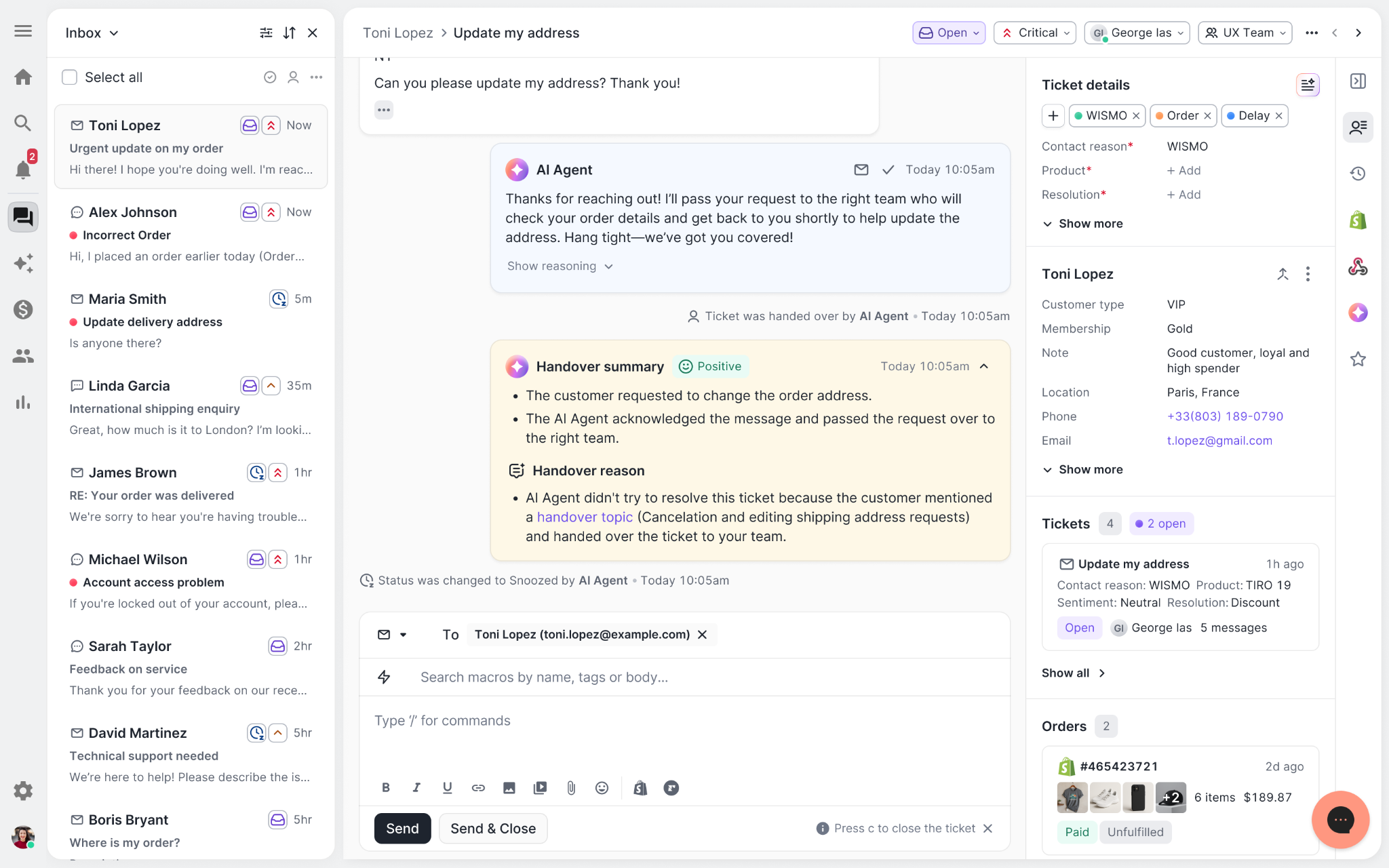
When a handoff happens, your agents should see everything the AI did. That includes the full conversation, relevant customer data, and any actions it has already attempted. This helps your team respond quickly and avoid repeating what the customer just went through.
An easy way to keep order history, customer data, and conversation history in one place is by using a conversational commerce tool like Gorgias.
A jarring shift in tone between AI and agent makes the experience feel disconnected. Align aspects such as formality, punctuation, and language style so the transition from AI to human feels natural.
Look at recent escalations each week. Identify where the AI struggled or handed off too early or too late. Use those insights to improve training, adjust boundaries, and strengthen your automation flows.
If your AI chatbot isn’t working the way you expected, it’s probably not because the technology is broken. It’s because it hasn’t been given the right rules.
When you set AI up with clear responsibilities, it becomes a powerful extension of your team.
Want to see what it looks like when AI is set up the right way?
Try Gorgias AI Agent. It’s conversational AI built with smart automation, clean escalations, and ecommerce data in its core — so your customers get faster answers and your agents stay focused.
TL;DR:
While most ecommerce brands debate whether to implement AI support, customers already rate AI assistance nearly as highly as human support. The future isn't coming. It's being built in real-time by brands paying attention.
As a conversational commerce platform processing millions of support tickets across thousands of brands, we see what's working before it becomes common knowledge. Three major shifts are converging faster than most founders realize, and this article breaks down what's already happening rather than what might happen someday.
By the end of 2026, we predict that the performance gap between ecommerce brands won't be determined by who adopted AI first. It will be determined by who built the content foundation that makes AI actually work.
Right now, we're watching this split happen in real time. AI can only be as good as the knowledge base it draws from. When we analyze why AI escalates tickets to human agents, the pattern is unmistakable.
The five topics triggering the most AI escalations are:
These aren’t complicated questions — they're routine questions every ecommerce brand faces daily. Yet some brands automate these at 60%+ rates while others plateau at 20%. The difference isn't better AI. It's better documentation.
Take SuitShop, a formalwear brand that reached 30% automation with a lean CX team. Their Director of Customer Experience, Katy Eriks, treats AI like a team member who needs coaching, not a plug-and-play tool.
When Katy first turned on AI in August 2023, the results were underwhelming. So she paused during their slow season and rebuilt their Help Center from the ground up. "I went back to the tickets I had to answer myself, checked what people were searching in the Help Center, and filled in the gaps," she explained.
The brands achieving high automation rates share Katie's approach:
AI echoes whatever foundation you provide. Clear documentation becomes instant, accurate support. Vague policies become confused AI that defaults to human escalation.
Read more: Coach AI Agent in one hour a week: SuitShop’s guide
Two distinct groups will emerge next year. Brands that invest in documentation quality now will deliver consistently better experiences at lower costs. Those who try to deploy AI on top of messy operations will hit automation plateaus and rising support costs. Every brand will eventually have access to similar AI technology. The competitive advantage will belong to those who did the unexciting work first.
Something shifted in July 2025. Gorgias’s AI accuracy jumped significantly after the GPT-5 release. For the first time, CX teams stopped second-guessing every AI response. We watched brand confidence in AI-generated responses rise from 57% to 85% in just a few months.
What this means in practice is that AI now outperforms human agents:
For the first time, AI isn't just faster than humans. It's more consistent, more accurate, and even more empathetic at scale.
This isn't about replacing humans. It's about what becomes possible when you free your team from repetitive work. Customer expectations are being reset by whoever responds fastest and most completely, and the brands crossing this threshold first are creating a competitive moat.
At Gorgias, the most telling signal was AI CSAT on chat improved 40% faster than on email this year. In other words, customers are beginning to prefer AI for certain interactions because it's immediate and complete.
Within the next year, we expect the satisfaction gap to hit zero for transactional support. The question isn't whether AI can match humans. It's what you'll do with your human agents once it does.
The brands that have always known support should drive revenue will finally have the infrastructure to make it happen on a bigger scale. AI removes the constraint that's held this strategy back: human bandwidth.
Most ecommerce leaders already understand that support conversations are sales opportunities. Product questions, sizing concerns, and “just browsing” chats are all chances to recommend, upsell, and convert. The problem wasn't awareness but execution at volume.
We analyzed revenue impact across brands using AI-powered product recommendations in support conversations. The results speak for themselves:
It's clear that conversations that weave in product recommendations convert at higher rates and result in larger order values. It’s time to treat support conversations as active buying conversations.
If you're already training support teams on product knowledge and tracking revenue per conversation, keep doing exactly what you're doing. You've been ahead of the curve. Now AI gives you the infrastructure to scale those same practices without the cost increase.
If you've been treating support purely as a cost center, start measuring revenue influence now. Track which conversations lead to purchases, which agents naturally upsell, and where customers ask for product guidance.
We are now past the point where response time is a brand's key differentiator. It is now the use of conversational commerce or systems that share details and context across every touchpoint.
Today, a typical customer journey looks something like this: see product on Instagram, ask a question via DM, complete purchase on mobile, track order via email. At each step, customers expect you to remember everything from the last interaction.
The most successful ecommerce tech stacks treat the helpdesk as the foundation that connects everything else. When your support platform connects to your ecommerce platform, shipping providers, returns portal, and every customer communication channel, context flows automatically.
A modern integration approach looks like this. Your ecommerce platform (like Shopify) feeds order data into a helpdesk like Gorgias, which becomes the hub for all customer conversations across email, chat, SMS, and social DMs. From there, connections branch out to payment providers, shipping carriers, and marketing automation tools.
As Dr. Bronner’s Senior CX Manager noted, “While Salesforce needed heavy development, Gorgias connected to our entire stack with just a few clicks. Our team can now manage workflows without needing custom development — we save $100k/year by switching."
As new channels emerge, brands with flexible tech stacks will adapt quickly while those with static systems will need months of development work to support new touchpoints. The winners will be brands that invest in their tools before adding new channels, not after customer complaints force their hand.
Start auditing your current integrations now. Where does customer data get stuck? Which systems don’t connect to each other? These gaps are costing you more than you realize, and in the future, they'll be the key to scaling or staying stagnant.
Post-purchase support quality will be a stronger predictor of customer lifetime value than any email campaign. Brands that treat support as a retention investment rather than a cost center will outperform in repeat purchase rates.
Returns and exchanges are make-or-break moments for customer lifetime value. How you handle problems, delays, and disappointments determines whether customers come back or shop elsewhere next time. According to Narvar, 96% of customers say they won’t repurchase from a brand after a poor return experience.
What customers expect reflects this reality. They want proactive shipping updates without having to ask, one-click returns with instant label generation, and notifications about problems before they have to reach out. When something goes wrong, they expect you to tell them first, not make them track you down for answers.
The quality of your response when things go wrong matters more than getting everything right the first time. Exchange suggestions during the return flow can keep the sale alive, turning a potential loss into loyalty.
Brands that treat post-purchase as a retention strategy rather than a task to cross off will see much higher repeat purchase rates. Those still relying purely on email marketing for retention will wonder why their customer lifetime value plateaus.
Start measuring post-return CSAT scores and repeat purchase rates by support interaction quality. These metrics will tell you whether your post-purchase experience is building loyalty or quietly eroding it.
After absorbing these predictions about AI accuracy, content infrastructure, revenue-centric support, context, and post-purchase tactics, here's your roadmap for the next 24 months.
Now (in 90 days):
Next (in 6-12 months):
Watch (in 12-24 months):
The patterns we've shared, from AI crossing the accuracy threshold to documentation quality, are happening right now across thousands of brands. Over the next 24 months, teams will be separated by operational maturity.
Book a demo to see how leading brands are already there.
{{lead-magnet-2}}
The best in CX and ecommerce, right to your inbox

TL;DR:
Customer education has become a critical factor in converting browsers into buyers. For wellness brands like Cornbread Hemp, where customers need to understand ingredients, dosages, and benefits before making a purchase, education has a direct impact on sales. The challenge is scaling personalized education when support teams are stretched thin, especially during peak sales periods.
Katherine Goodman, Senior Director of Customer Experience, and Stacy Williams, Senior Customer Experience Manager, explain how implementing Gorgias's AI Shopping Assistant transformed their customer education strategy into a conversion powerhouse.
In our second AI in CX episode, we dive into how Cornbread achieved a 30% conversion rate during BFCM, saving their CX team over four days of manual work.
Before diving into tactics, understanding why education matters in the wellness space helps contextualize this approach.
Katherine, Senior Director of Customer Experience at Cornbread Hemp, explains:
"Wellness is a very saturated market right now. Getting to the nitty-gritty and getting to the bottom of what our product actually does for people, making sure they're educated on the differences between products to feel comfortable with what they're putting in their body."
The most common pre-purchase questions Cornbread receives center around three areas: ingredients, dosages, and specific benefits. Customers want to know which product will help with their particular symptoms. They need reassurance that they're making the right choice.
What makes this challenging: These questions require nuanced, personalized responses that consider the customer's specific needs and concerns. Traditionally, this meant every customer had to speak with a human agent, creating a bottleneck that slowed conversions and overwhelmed support teams during peak periods.
Stacy, Senior Customer Experience Manager at Cornbread, identified the game-changing impact of Shopping Assistant:
"It's had a major impact, especially during non-operating hours. Shopping Assistant is able to answer questions when our CX agents aren't available, so it continues the customer order process."
A customer lands on your site at 11 PM, has questions about dosage or ingredients, and instead of abandoning their cart or waiting until morning for a response, they get immediate, accurate answers that move them toward purchase.
The real impact happens in how the tool anticipates customer needs. Cornbread uses suggested product questions that pop up as customers browse product pages. Stacy notes:
"Most of our Shopping Assistant engagement comes from those suggested product features. It almost anticipates what the customer is asking or needing to know."
Actionable takeaway: Don't wait for customers to ask questions. Surface the most common concerns proactively. When you anticipate hesitation and address it immediately, you remove friction from the buying journey.
One of the biggest myths about AI is that implementation is complicated. Stacy explains how Cornbread’s rollout was a straightforward three-step process: audit your knowledge base, flip the switch, then optimize.
"It was literally the flip of a switch and just making sure that our data and information in Gorgias was up to date and accurate."
Here's Cornbread’s three-phase approach:
Actionable takeaway: Block out time for that initial knowledge base audit. Then commit to regular check-ins because your business evolves, and your AI should evolve with it.
Read more: AI in CX Webinar Recap: Turning AI Implementation into Team Alignment
Here's something most brands miss: the way you write your knowledge base articles directly impacts conversion rates.
Before BFCM, Stacy reviewed all of Cornbread's Guidance and rephrased the language to make it easier for AI Agent to understand.
"The language in the Guidance had to be simple, concise, very straightforward so that Shopping Assistant could deliver that information without being confused or getting too complicated," Stacy explains. When your AI can quickly parse and deliver information, customers get faster, more accurate answers. And faster answers mean more conversions.
Katherine adds another crucial element: tone consistency.
"We treat AI as another team member. Making sure that the tone and the language that AI used were very similar to the tone and the language that our human agents use was crucial in creating and maintaining a customer relationship."
As a result, customers often don't realize they're talking to AI. Some even leave reviews saying they loved chatting with "Ally" (Cornbread's AI agent name), not realizing Ally isn't human.
Actionable takeaway: Review your knowledge base with fresh eyes. Can you simplify without losing meaning? Does it sound like your brand? Would a customer be satisfied with this interaction? If not, time for a rewrite.
Read more: How to Write Guidance with the “When, If, Then” Framework
The real test of any CX strategy is how it performs under pressure. For Cornbread, Black Friday Cyber Monday 2025 proved that their conversational commerce strategy wasn't just working, it was thriving.
Over the peak season, Cornbread saw:
Katherine breaks down what made the difference:
"Shopping Assistant popping up, answering those questions with the correct promo information helps customers get from point A to point B before the deal ends."
During high-stakes sales events, customers are in a hurry. They're comparing options, checking out competitors, and making quick decisions. If you can't answer their questions immediately, they're gone. Shopping Assistant kept customers engaged and moving toward purchase, even when human agents were swamped.
Actionable takeaway: Peak periods require a fail-safe CX strategy. The brands that win are the ones that prepare their AI tools in advance.
One of the most transformative impacts of conversational commerce goes beyond conversion rates. What your team can do with their newfound bandwidth matters just as much.
With AI handling straightforward inquiries, Cornbread's CX team has evolved into a strategic problem-solving team. They've expanded into social media support, provided real-time service during a retail pop-up, and have time for the high-value interactions that actually build customer relationships.
Katherine describes phone calls as their highest value touchpoint, where agents can build genuine relationships with customers. “We have an older demographic, especially with CBD. We received a lot of customer calls requesting orders and asking questions. And sometimes we end up just yapping,” Katherine shares. “I was yapping with a customer last week, and we'd been on the call for about 15 minutes. This really helps build those long-term relationships that keep customers coming back."
That's the kind of experience that builds loyalty, and becomes possible only when your team isn't stuck answering repetitive tickets.
Stacy adds that agents now focus on "higher-level tickets or customer issues that they need to resolve. AI handles straightforward things, and our agents now really are more engaged in more complicated, higher-level resolutions."
Actionable takeaway: Stop thinking about AI only as a cost-cutting tool and start seeing it as an impact multiplier. The goal is to free your team to work on conversations that actually move the needle on customer lifetime value.
Cornbread isn't resting on their BFCM success. They're already optimizing for January, traditionally the biggest month for wellness brands as customers commit to New Year's resolutions.
Their focus areas include optimizing their product quiz to provide better data to both AI and human agents, educating customers on realistic expectations with CBD use, and using Shopping Assistant to spotlight new products launching in Q1.
The brands winning at conversational commerce aren't the ones with the biggest budgets or the largest teams. They're the ones who understand that customer education drives conversions, and they've built systems to deliver that education at scale.
Cornbread Hemp's success comes down to three core principles: investing time upfront to train AI properly, maintaining consistent optimization, and treating AI as a team member that deserves the same attention to tone and quality as human agents.
As Katherine puts it:
"The more time that you put into training and optimizing AI, the less time you're going to have to babysit it later. Then, it's actually going to give your customers that really amazing experience."
Watch the replay of the whole conversation with Katherine and Stacy to learn how Gorgias’s Shopping Assistant helps them turn browsers into buyers.
{{lead-magnet-1}}

TL;DR:
Rising customer expectations, shoppers willing to pay a premium for convenience, and a growing lack of trust in social media channels to make purchase decisions are making it more challenging to turn a profit.
In this emerging era, AI’s role is becoming not only more pronounced, but a necessity for brands who want to stay ahead. Tools like Gorgias Shopping Assistant can help drive measurable revenue while reducing support costs.
For example, a brand that specializes in premium outdoor apparel implemented Shopping Assistant and saw a 2.25% uplift in GMV and 29% uplift in average order volume (AOV).
But how, among competing priorities and expenses, do you convince leadership to implement it? We’ll show you.
Shoppers want on-demand help in real time that’s personalized across devices.
Shopping Assistant recalls a shopper’s browsing history, like what they have clicked, viewed, and added to their cart. This allows it to make more relevant suggestions that feel personal to each customer.
The AI ecommerce tools market was valued at $7.25 billion in 2024 and is expected to reach $21.55 billion by 2030.
Your competitors are using conversational AI to support, sell, and retain. Shopping Assistant satisfies that need, providing upsells and recommendations rooted in real shopper behavior.
Conversational AI has real revenue implications, impacting customer retention, average order value (AOV), conversion rates, and gross market value (GMV).
For example, a leading nutrition brand saw a GMV uplift of over 1%, an increase in AOV of over 16%, and a chat conversion rate of over 15% after implementing Shopping Assistant.
Overall, Shopping Assistant drives higher engagement and more revenue per visitor, sometimes surpassing 50% and 20%, respectively.

Shopping Assistant engages, personalizes, recommends, and converts. It provides proactive recommendations, smart upsells, dynamic discounts, and is highly personalized, all helping to guide shoppers to checkout.
After implementing Shopping Assistant, leading ecommerce brands saw real results:
Industry |
Primary Use Case |
GMV Uplift (%) |
AOV Uplift (%) |
Chat CVR (%) |
|---|---|---|---|---|
Home & interior decor 🖼️ |
Help shoppers coordinate furniture with existing pieces and color schemes. |
+1.17 |
+97.15 |
10.30 |
Outdoor apparel 🎿 |
In-depth explanations of technical features and confidence when purchasing premium, performance-driven products. |
+2.25 |
+29.41 |
6.88 |
Nutrition 🍎 |
Personalized guidance on supplement selection based on age, goals, and optimal timing. |
+1.09 |
+16.40 |
15.15 |
Health & wellness 💊 |
Comparing similar products and understanding functional differences to choose the best option. |
+1.08 |
+11.27 |
8.55 |
Home furnishings 🛋️ |
Help choose furniture sizes and styles appropriate for children and safety needs. |
+12.26 |
+10.19 |
1.12 |
Stuffed toys 🧸 |
Clear care instructions and support finding replacements after accidental product damage. |
+4.43 |
+9.87 |
3.62 |
Face & body care 💆♀️ |
Assistance finding the correct shade online, especially when previously purchased products are no longer available. |
+6.55 |
+1.02 |
5.29 |
Shopping Assistant drives uplift in chat conversion rate and makes successful upsell recommendations.
“It’s been awesome to see Shopping Assistant guide customers through our technical product range without any human input. It’s a much smoother journey for the shopper,” says Nathan Larner, Customer Experience Advisor for Arc’teryx.
For Arc’teryx, that smoother customer journey translated into sales. The brand saw a 75% increase in conversion rate (from 4% to 7%) and 3.7% of overall revenue influenced by Shopping Assistant.

Because it follows shoppers’ live journey during each session on your website, Shopping Assistant catches shoppers in the moment. It answers questions or concerns that might normally halt a purchase, gets strategic with discounting (based on rules you set), and upsells.
The overall ROI can be significant. For example, bareMinerals saw an 8.83x return on investment.
"The real-time Shopify integration was essential as we needed to ensure that product recommendations were relevant and displayed accurate inventory,” says Katia Komar, Sr. Manager of Ecommerce and Customer Service Operations, UK at bareMinerals.
“Avoiding customer frustration from out-of-stock recommendations was non-negotiable, especially in beauty, where shade availability is crucial to customer trust and satisfaction. This approach has led to increased CSAT on AI converted tickets."

Shopping Assistant can impact CSAT scores, response times, resolution rates, AOV, and GMV.
For Caitlyn Minimalist, those metrics were an 11.3% uplift in AOV, an 18% click through rate for product recommendations, and a 50% sales lift versus human-only chats.
"Shopping Assistant has become an intuitive extension of our team, offering product guidance that feels personal and intentional,” says Anthony Ponce, its Head of Customer Experience.

Support agents have limited time to assist customers as it is, so taking advantage of sales opportunities can be difficult. Shopping Assistant takes over that role, removing obstacles for purchase or clearing up the right choice among a stacked product catalog.
With a product that’s not yet mainstream in the US, TUSHY leverages Shopping Assistant for product education and clarification.
"Shopping Assistant has been a game-changer for our team, especially with the launch of our latest bidet models,” says Ren Fuller-Wasserman, Sr. Director of Customer Experience at TUSHY.
“Expanding our product catalog has given customers more choices than ever, which can overwhelm first-time buyers. Now, they’re increasingly looking to us for guidance on finding the right fit for their home and personal hygiene needs.”
The bidet brand saw 13x return on investment after implementation, a 15% increase in chat conversion rate, and a 2x higher conversion rate for AI conversations versus human ones.

Customer support metrics include:
Revenue metrics to track include:
Shopping Assistant connects to your ecommerce platform (like Shopify), and streamlines information between your helpdesk and order data. It’s also trained on your catalog and support history.
Allow your agents to focus on support and sell more by tackling questions that are getting in the way of sales.
{{lead-magnet-2}}

TL;DR:
Most shoppers arrive with questions. Is this the right size? Will this match my skin tone? What’s the difference between these models? The faster you can guide them, the faster they decide.
As CX teams take on a bigger role in driving revenue, these moments of hesitation are now some of the most important parts of the buying journey.
That’s why more brands are leaning on conversational AI to support these high-intent questions and remove the friction that slows shoppers down. The impact speaks for itself. Brands can expect higher AOV, stronger chat conversion rates, and smoother paths to purchase, all without adding extra work to your team.
Below, we’re sharing real use cases from 11 ecommerce brands across beauty, apparel, home, body care, and more, along with the exact results they saw after introducing guided shopping experiences.
When you’re shopping for shoes similar to an old but discontinued favorite, every detail counts, down to the color of the bottom of the shoe. But legacy brands with large catalogs can be overwhelming to browse.
For shoppers, it’s a double-edged sword: they want to feel confident that they checked your entire collection, but they also don’t want to spend time looking for it.
How Shopping Assistant helps:
Shopping Assistant accelerates the process, turning hazy details into clear, friendly guidance.
It describes shoe details, from colorways to logo placement, compares products side by side, and recommends the best option based on the shopper’s preferences and conditions.
The result is shoppers who feel satisfied and more connected with your brand.

Results:
Big events call for great outfits, but putting one together online isn’t always easy. With thousands of options to scroll through, shoppers often want a bit of styling direction.
How Shopping Assistant helps:
Shoppers get to chat with a virtual stylist who recommends full outfits based on the occasion, suggests accessories to complete the look, and removes the guesswork of pairing pieces together.
The result is a fun, confidence-building shopping experience that feels like getting advice from a stylist who actually understands their plans.

Results:
Shade matching is hard enough in-store, but doing it online can feel impossible. Plus, when a longtime favorite gets discontinued, shoppers are left guessing which new shade will come closest. That uncertainty often leads to hesitation, abandoned carts, or ordering multiple shades “just in case.”
How Shopping Assistant helps:
Shoppers find their perfect match without any of the guesswork. The assistant asks a few quick questions, recommends the closest shade or formula, and offers smart alternatives when a product is unavailable.
The experience feels like chatting with a knowledgeable beauty advisor — someone who makes the decision easy and leaves shoppers feeling confident in what they’re buying.
Katia Komar, Sr. Manager of Ecommerce and Customer Service Operations at bareMinerals UK says, “What impressed me the most is the AI’s ability to upsell with a conversational tone that feels genuinely helpful and doesn't sound too pushy or transactional. It sounds remarkably human, identifying correct follow-up questions to determine the correct product recommendation, resulting in improved AOV. It’s exactly how I train our human agents and BPO partners.”

Results:
When shoppers are buying gifts, especially for someone else, they often know who they’re shopping for but not what to buy. A vague product name or a half-remembered scent can quickly make the experience feel overwhelming without someone to guide them.
How Shopping Assistant helps:
Thoughtful guidance goes a long way. By asking clarifying questions and recognizing likely mix-ups, Shopping Assistant helps shoppers figure out what the recipient was probably referring to, then recommends the right product along with complementary gift options that make the choice feel intentional.
It brings the reassurance of an in-store associate to the online experience, helping shoppers move forward with confidence.

Results:
Finding the right bra size online is notoriously tricky. Shoppers often second-guess their band or cup size, and even small uncertainties can lead to returns — or abandoning the purchase altogether.
Many customers just want someone to walk them through what a proper fit should actually feel like.
How Shopping Assistant helps:
Searching for products is no longer a time-consuming process. Shopping Assistant detects a shopper’s search terms and sends relevant products in chat. Like an in-store associate, it uses context to deliver what shoppers are looking for, so they can skip the search and head right to checkout.

Results:
For shoppers buying personalized jewelry, the details directly affect the final result. That’s why customization questions come up constantly, and why uncertainty can quickly stall the path to purchase.
How Shopping Assistant helps:
Shopping Assistant asks about the shopper’s style preferences and customization needs, then recommends the right product and options so they can feel confident the final piece is exactly their style. The experience feels quick, helpful, and designed to guide shoppers toward a high investment purchase.

Results:
Decorating a home is personal, and shoppers often want reassurance that a new piece will blend with what they already own. Questions about color palettes, textures, and proportions come up constantly. And without guidance, it’s easy for shoppers to feel unsure about hitting “add to cart.”
How Shopping Assistant helps:
Giving shoppers personalized styling support helps them visualize how pieces will work in their home.
Shoppers receive styling suggestions based on their existing space as well as recommendations on pieces that complement their color palette.
It even guides them toward a 60-minute virtual styling consultation when they need deeper help. The experience feels thoughtful and high-touch, which is why shoppers often spend more once they feel confident in their choices.

Results:
When shoppers discover a new drink mix, they’re bound to have questions before committing. How strong will it taste? How much should they use? Will it work with their preferred drink or routine? Uncertainty at this stage can stall the purchase or lead to disappointment later.
How Shopping Assistant helps:
Clear, friendly guidance in chat helps shoppers understand exactly how to use the product. Shopping Assistant answers questions about serving size, flavor strength, and pairing options, and suggests the best way to prepare the mix based on the shopper’s preferences.

Results:
Shopping for health supplements can feel confusing fast. Customers often have questions about which formulas fit their age, health goals, or daily routine. Without clear guidance, most will hesitate or pick the wrong product.
How Shopping Assistant helps:
Shopping Assistant detects hesitation when shoppers linger on a search results page. It proactively asks a few clarifying questions, narrows down product options, and points shoppers to the best product or bundle for their needs.
The entire experience feels supportive and gives shoppers confidence they’ve picked the right option.

Results:
Shopping for kids’ furniture comes with a lot of “Is this the right one?” moments. Parents want something safe, sturdy, and sized correctly for their child’s age. With so many options, it’s easy to feel unsure about what will actually work in their space.
How Shopping Assistant helps:
Shopping Assistant guides parents toward the best fit right away. It asks about their child’s age, room layout, and safety considerations, then recommends the most appropriate bed or furniture setup. The experience feels like chatting with a knowledgeable salesperson who understands what families actually need as kids grow.

Results:
Even something as simple as choosing a toothbrush can feel complicated when multiple models come with different speeds, materials, and features. Shoppers want to understand what matters so they can pick the one that fits their routine and budget.
How Shopping Assistant helps:
Choosing between toothbrush models shouldn’t feel like decoding tech specs. When shoppers can see the key differences in plain language, including what’s unique, how each model works, and who it’s best for, they can make a decision with ease.
Suddenly, the whole process feels simple instead of overwhelming.

Results:
Across all 11 brands, one theme is clear. When shoppers get the guidance they need at the right moment, they convert more confidently and often spend more.
Here’s what stands out:
What this means for you:
Look closely at your most common pre-purchase questions. Anywhere shoppers hesitate from fit, shade, technical specs, styling, bundles is a place where Shopping Assistant can step in, boost confidence, and unlock more sales.
If you notice the same patterns in your own store, such as shoppers hesitating over sizing, shade matching, product comparisons, or technical details, guided shopping can make an immediate impact. These moments are often your biggest opportunities to increase revenue and improve the buying experience.
Many of the brands in this post started by identifying their most common pre-purchase questions and letting AI handle them at scale. You can do the same.
If you want to boost conversions, lift AOV, and create a smoother path to purchase, now is a great time to explore guided shopping for your team.
Book a demo or activate Shopping Assistant to get started.
{{lead-magnet-2}}

TL;DR:
Ecommerce and retail accounted for over 35% of conversational commerce spend in 2023, totaling $9 billion globally. This isn't surprising — conversational commerce delivers what customers demand nowadays: immediate, personalized responses wherever they shop.
We’ll explain what conversational commerce is, its benefits for ecommerce brands, and how to implement it effectively.
Conversational commerce is the practice of using real-time, two-way conversations as your storefront, turning every customer interaction into an opportunity to sell, support, and build relationships through instant messaging.
The key difference from traditional ecommerce is the interactive element. You're not just displaying products and hoping customers buy. You're actively answering questions and guiding shoppers through their experience in real time.
These conversations happen across four main channels:
Read more: Conversational commerce: A complete beginner's guide
Conversational commerce delivers measurable results that impact both revenue and operational efficiency. Here are the seven key benefits you can expect.
When shoppers have questions, they want answers immediately. Making them wait for email replies often means losing the sale.
Conversational commerce removes this barrier by providing instant responses. Questions about sizing, product features, or shipping policies get answered in seconds. This is especially critical for mobile shoppers who have less patience for complex navigation.
Real-time answers work because they catch customers at the moment of highest intent. When someone is actively considering a purchase and asks a question, an immediate helpful response often provides the final push they need to buy.
Conversations create natural opportunities for upselling that are often hard to come by when a customer just wants to know where their order is. Based on what customers ask or what's in their cart, you can make relevant recommendations that feel helpful rather than pushy.
These recommendations work because they're contextual and helpful. Customers see them as expert advice rather than sales pitches, leading to natural increases in average order value.
Cart abandonment affects nearly every ecommerce store. Conversational commerce gives you powerful tools to combat this problem through proactive engagement.
You can set up triggers that automatically engage shoppers showing signs of abandonment. A simple message like "Questions about the items in your cart?" can re-engage hesitant buyers. You can also offer time-sensitive discounts or clarify shipping information that might be causing hesitation.
The key is timing. Catching customers at the right moment with the right message can recover significant revenue that would otherwise be lost.
Related: Why campaign timing matters: 4 ways to get it right
Many support inquiries are repetitive and simple to resolve. Questions about order status, return policies, or shipping information can easily be handled by AI agents.
Automating these responses provides several benefits:
This automation doesn't replace human agents. It frees them to do more work that drives actual business value.
Self-service capabilities significantly reduce support ticket volume. AI-powered chatbots and well-structured help centers can deflect common questions before they reach your team.
This approach allows you to scale support operations without proportionally increasing costs. You can handle seasonal volume spikes like Black Friday Cyber Monday without overwhelming your team or sacrificing service quality.
The cost savings compound over time. Every automated resolution reduces the load on human agents, allowing smaller teams to support larger customer bases effectively.
Every conversation generates valuable zero-party data — information customers willingly share with you. Through natural dialogue, you learn about preferences, pain points, and purchase motivations.
This data becomes a goldmine for marketing teams:
The more you understand your customers through conversations, the more effective all your marketing becomes.
Conversational commerce builds relationships through every interaction. When customers feel heard and valued, they become repeat buyers and brand advocates.
Fast, helpful, and personalized interactions create memorable experiences that build trust. By maintaining consistent brand voice across all channels and providing support that feels human, you foster emotional connections with customers.
These relationships are the foundation of long-term business success. Loyal customers have higher lifetime value, make more frequent purchases, and refer others to your brand.
DTC brands thrive by turning the online shopping experience into a competitive advantage. Maximizing each touchpoint with conversational commerce is how you do it. Focus on these use cases for quick, measurable impact.
Products requiring education — like skincare, supplements, or technical apparel — hugely benefit from conversational selling. Chat acts as a virtual consultant, helping customers find the product made for them.
How to implement: Create guided flows that ask about customer needs and recommend perfect products. This consultative approach builds confidence and helps shoppers feel certain about their choices.
Order status and returns questions dominate most support queues. Automating these inquiries reduces the load of day-to-day tasks, benefiting long-term efficiency.
How to implement: Set up self-serve order management on your website. Guide customers through return initiation directly within chat and link to your returns portal. This deflects huge volumes of repetitive tickets.
Proactively engaging cart abandoners delivers some of the highest ROI in conversational commerce. When customers have items in cart but haven't checked out, trigger helpful messages.
How to implement: Offer to answer questions or provide time-sensitive discounts to create urgency. This simple intervention can recover significant otherwise-lost revenue.
Implementing conversational commerce doesn't require massive overhauls. Start small, prove value, and expand based on results.
Don't automate everything immediately. Begin with your highest-volume, most repetitive inquiries — typically order status questions and return policy inquiries.
Build solid automation for these top intents first. Measure impact on ticket volume, resolution time, and customer satisfaction. This creates clear wins and builds momentum for future expansion.
Choose one channel based on where your customers are most active. Analyze your data to understand whether that's website chat, Instagram DMs, or SMS.
Master that channel before expanding to others. This allows you to test, learn, and optimize in a controlled environment. Apply these learnings as you scale to ensure consistent, high-quality experiences everywhere.
Generative AI is making support conversations more natural than ever.
The future focuses on proactive and predictive engagement, where brands anticipate customer needs before they're expressed. As privacy concerns grow, owned channels and first-party data from conversations become increasingly valuable for building direct customer relationships.
Ready to see how leading ecommerce brands turn every customer conversation into growth opportunities? Book a demo to see Gorgias in action and learn how you can transform your customer experience.
{{lead-magnet-2}}

TL;DR:
In 2024, Shopify merchants drove $11.5 billion in sales over Black Friday Cyber Monday. Now, BFCM is quickly approaching, with some brands and major retailers already hosting sales.
If you’re feeling late to prepare for the season or want to maximize the number of sales you’ll make, we’ll cover how food and beverage CX teams can serve up better self-serve resources for this year’s BFCM.
Learn how to answer and deflect customers’ top questions before they’re escalated to your support team.
💡 Your guide to everything peak season → The Gorgias BFCM Hub
During busy seasons like BFCM and beyond, staying on top of routine customer asks can be an extreme challenge.
“Every founder thinks BFCM is the highest peak feeling of nervousness,” says Ron Shah, CEO and Co-founder of supplement brand Obvi.
“It’s a tough week. So anything that makes our team’s life easier instantly means we can focus more on things that need the time,” he continues.
Anticipating contact reasons and preparing methods (like automated responses, macros, and enabling an AI Agent) is something that can help. Below, find the top contact reasons for food and beverage companies in 2025.
According to Gorgias proprietary data, the top reason customers reach out to brands in the food and beverage industry is to cancel a subscription (13%) followed by order status questions (9.1%).
Contact Reason |
% of Tickets |
|---|---|
🍽️ Subscription cancellation |
13% |
🚚 Order status (WISMO) |
9.1% |
❌ Order cancellation |
6.5% |
🥫 Product details |
5.7% |
🧃 Product availability |
4.1% |
⭐ Positive feedback |
3.9% |
Because product detail queries represent 5.7% of contact reasons for the food and beverage industry, the more information you provide on your product pages, the better.
Include things like calorie content, nutritional information, and all ingredients.
For example, ready-to-heat meal company The Dinner Ladies includes a dropdown menu on each product page for further reading. Categories include serving instructions, a full ingredient list, allergens, nutritional information, and even a handy “size guide” that shows how many people the meal serves.

FAQ pages make up the information hub of your website. They exist to provide customers with a way to get their questions answered without reaching out to you.
This includes information like how food should be stored, how long its shelf life is, delivery range, and serving instructions. FAQs can even direct customers toward finding out where their order is and what its status is.

In the context of BFCM, FAQs are all about deflecting repetitive questions away from your team and assisting shoppers in finding what they need faster.
That’s the strategy for German supplement brand mybacs.
“Our focus is to improve automations to make it easier for customers to self-handle their requests. This goes hand in hand with making our FAQs more comprehensive to give customers all the information they need,” says Alexander Grassmann, its Co-Founder & COO.
As you contemplate what to add to your FAQ page, remember that more information is usually better. That’s the approach Everyday Dose takes, answering even hyper-specific questions like, “Will it break my fast?” or “Do I have to use milk?”

While the FAQs you choose to add will be specific to your products, peruse the top-notch food and bev FAQ pages below.
Time for some FAQ inspo:
AI Agents and AI-powered Shopping Assistants are easy to set up and are extremely effective in handling customer interactions––especially during BFCM.
“I told our team we were going to onboard Gorgias AI Agent for BFCM, so a good portion of tickets would be handled automatically,” says Ron Shah, CEO and Co-founder at Obvi. “There was a huge sigh of relief knowing that customers were going to be taken care of.”
And, they’re getting smarter. AI Agent’s CSAT is just 0.6 points shy of human agents’ average CSAT score.

Here are the specific responses and use cases we recommend automating:
Get your checklist here: How to prep for peak season: BFCM automation checklist
With high price reductions often comes faster-than-usual sell out times. By offering transparency around item quantities, you can avoid frustrated or upset customers.
For example, you could show how many items are left under a certain threshold (e.g. “Only 10 items left”), or, like Rebel Cheese does, mention whether items have sold out in the past.

You could also set up presales, give people the option to add themselves to a waitlist, and provide early access to VIP shoppers.
Give shoppers a heads up whether they’ll be able to cancel an order once placed, and what your refund policies are.
For example, cookware brand Misen follows its order confirmation email with a “change or cancel within one hour” email that provides a handy link to do so.

Your refund policies and order cancellations should live within an FAQ and in the footer of your website.
Include how-to information on your website within your FAQs, on your blog, or as a standalone webpage. That might be sharing how to use a product, how to cook with it, or how to prepare it. This can prevent customers from asking questions like, “how do you use this?” or “how do I cook this?” or “what can I use this with?” etc.
For example, Purity Coffee created a full brewing guide with illustrations:

Similarly, for its unique preseasoned carbon steel pan, Misen lists out care instructions:

And for those who want to understand the level of prep and cooking time involved, The Dinner Ladies feature cooking instructions on each product page.

Interactive quizzes, buying guides, and gift guides can help ensure shoppers choose the right items for them––without contacting you first.
For example, Trade Coffee Co created a quiz to help first timers find their perfect coffee match:

The more information you can share with customers upfront, the better. That will leave your team time to tackle the heady stuff.
If you’re looking for an AI-assist this season, check out Gorgias’s suite of products like AI Agent and Shopping Assistant.
{{lead-magnet-2}}

TL;DR:
Conversational AI changes how ecommerce brands interact with customers by enabling natural, human-like conversations at scale, helping reduce customer churn.
Instead of forcing shoppers through rigid menus or making them wait for support, conversational AI understands questions, detects intent, and delivers instant, personalized responses.
This technology powers everything from customer service chatbots to voice assistants, helping brands automate repetitive tasks while maintaining the personal touch customers expect.
For ecommerce specifically, it means handling order inquiries, providing product recommendations, and recovering abandoned carts — all without adding headcount.
Conversational AI is a type of artificial intelligence that allows computers to understand, process, and respond to human language through natural, two-way conversations. This means your customers can ask questions in their own words and get helpful answers that feel like they're talking to a real person.
Unlike basic chatbots that only recognize specific keywords, conversational AI actually understands what your customers mean. It can handle typos, slang, and complex questions that have multiple parts. The AI learns from every conversation, getting better at helping your customers over time.
Think of it as having a super-smart team member who never sleeps, never gets frustrated, and remembers every detail about your products and policies. This AI team member can chat with customers on your website, answer questions through social media, or even handle phone calls.
Conversational AI works because several smart technologies team up to understand and respond to your customers. Each piece has a specific job in making conversations feel natural and helpful.
Natural Language Processing (NLP) is the foundation that breaks down human language into pieces a computer can understand. This means when a customer types "Where's my order?" the AI can identify the important words and grammar structure.
Natural Language Understanding (NLU) figures out what the customer actually wants. This is the smart part that realizes "Where's my order?" means the customer wants to track a shipment, even if they phrase it differently like "I need to check my package status."
Natural Language Generation (NLG) creates responses that sound human and helpful. Instead of robotic answers, it crafts replies that match your brand's voice and provide exactly what the customer needs to know.
The dialog manager keeps track of the entire conversation. This means if a customer asks a follow-up question, the AI remembers what you were just talking about and can give a relevant answer.
Your knowledge base stores all the information the AI needs to help customers. This includes your return policy, product details, shipping information, and any other facts your team would use to answer questions.
Conversational AI follows a simple three-step process that happens in seconds. Understanding this process helps you see why it's so much more powerful than old-school chatbots.
When a customer sends a message or asks a question, the AI first needs to understand what they're saying. For text messages from chat, email, or social media, the system breaks down the sentence into individual words and analyzes the grammar.
For voice interactions like phone calls, the AI uses speech recognition to turn spoken words into text first. Modern systems handle different accents, background noise, and natural speech patterns without missing a beat.
Once the AI has the customer's words, it needs to figure out what they actually want. The system looks for the customer's intent — their goal or what they're trying to accomplish.
For example, when someone asks "Can I return this sweater I bought last week?" the AI identifies the intent as wanting to make a return. It also pulls out important details like the product type and timeframe.
The AI also uses context from earlier in the conversation. If the customer mentioned their order number earlier, the AI remembers it and can use that information to help with the return request.
After understanding what the customer wants, the AI creates a helpful response. It might pull information from your knowledge base, personalize the answer with the customer's specific details, or generate a completely new response using generative AI.
The system also checks how confident it is in its answer. If the AI isn't sure about something or if the topic is too complex, it knows to hand the conversation over to one of your human agents.
Different types of conversational AI work better for different situations in your ecommerce business. Understanding these types helps you choose the right solution for your customers and team.
Chatbots are the most common type you'll see on websites and messaging apps. Early chatbots followed strict scripts — if a customer's question didn't match the script exactly, the bot would get confused and give unhelpful answers.
Modern AI-powered chatbots understand natural language and can handle much more complex conversations. The best systems combine both approaches: using simple rules for straightforward questions and AI for everything else.
These chatbots work great for answering common questions about shipping, returns, and product details. They can also help customers find the right products or guide them through your checkout process.
Voice assistants bring conversational AI to phone support and other voice channels. These aren't the old phone trees that made customers press numbers to navigate menus.
Instead, customers can speak naturally and get helpful answers right away. Voice assistants can look up order information, explain your return policy, or even process simple requests like address changes.
This works especially well for customers who prefer calling over typing, or when they need help while their hands are busy.
Read more: How Cornbread Hemp reached a 13.6% phone conversion rate with Gorgias Voice
AI agents are the most advanced type of conversational AI. Unlike chatbots that mainly provide information, AI agents can actually take action on behalf of customers.
These systems connect to your other business tools like Shopify, your shipping software, or your returns platform. This means they can do things like:
Copilots work alongside your human agents, suggesting responses and pulling up customer information to help resolve issues faster.
Read more: How AI Agent works & gathers data
Conversational AI delivers real business results for ecommerce brands. The benefits go beyond just making your support team more efficient — though that's certainly part of it.
24/7 availability means you never miss a sale or support opportunity. Customers can get help at 2 a.m. or during holidays when your team is offline. This is especially valuable for international customers in different time zones.
Instant responses prevent cart abandonment and customer frustration, improving first contact resolution. When someone has a question about sizing or shipping, they get an answer immediately instead of waiting hours or days for an email response.
Personalized interactions at scale drive higher average order values. The AI can recommend products based on what customers are browsing, their purchase history, and their preferences, just like your best salesperson would.
Cost efficiency comes from handling repetitive questions automatically. Your human agents can focus on complex issues, VIP customers, and revenue-generating activities instead of answering the same shipping questions over and over.
Multilingual support helps you serve global customers without hiring native speakers for every language. The AI can communicate in dozens of languages, opening up new markets for your business.
Certain moments in the shopping experience create the biggest opportunities for conversational AI to drive results. Focus on these high-impact use cases first.
Pre-purchase questions are your biggest conversion opportunity. When someone is looking at a product but hasn't bought yet, quick answers about sizing, materials, or compatibility can close the sale. The AI can also suggest complementary products or highlight features the customer might have missed.
Order tracking makes up the largest volume of support tickets for most ecommerce brands. Customers want to know where their package is, when it will arrive, and what to do if there's a delay. AI handles these WISMO requests instantly by pulling real-time tracking information.
Returns and exchanges can be complex, but AI excels at the initial screening. It can check if an item is eligible for return, explain your policy, and start the return process. For straightforward returns, customers never need to wait for human help.
Cart recovery works best when it's immediate and personal. AI can detect when someone abandons their cart and reach out through chat or email with personalized messages, discount offers, or answers to common concerns that prevent purchases.
Post-purchase support keeps customers happy after they buy. The AI can send order confirmations, provide care instructions, suggest related products, and handle simple issues like address changes.
Getting started with conversational AI doesn't require a complete overhaul of your systems. The key is starting with clear goals and building your capabilities over time.
The best automation opportunities are found in your tickets. Look for questions that come up repeatedly and have straightforward answers. Common examples include order status, return policies, and basic product information.
Set realistic goals for your first phase. You might aim to automate 30% of your tickets or reduce average response time by half. Track metrics like:
Not all conversational AI platforms understand ecommerce needs. Look for a platform that integrates directly with Shopify and your other business tools. This connection is essential for pulling real-time order data, customer history, and product information.
Your platform should come with pre-built actions for common ecommerce tasks like order lookups, return processing, and subscription management. This saves months of custom development work.
Make sure you can control the AI's behavior through clear guidance and rules. You need to be able to set your brand voice, define when to escalate to humans, and update the AI's knowledge as your business changes.
Start your implementation by connecting your Shopify store to give the AI access to order and customer data. Don’t forget to integrate the rest of your tech stack like shipping software, returns platforms, and loyalty programs.
Launch with a few core use cases like order tracking and basic product questions. Monitor the AI's performance closely and gather feedback from both customers and your support team. Use this data to refine the AI's responses and gradually expand its capabilities.
The best approach is iterative — start small, learn what works, and build from there.
While conversational AI offers significant benefits, you need to be aware of potential challenges and plan for them from the start.
Accuracy concerns arise when AI systems provide incorrect information or "hallucinate" facts that aren't true. Prevent this by using platforms that ground responses in your verified knowledge base and product data rather than generating answers from scratch.
Brand voice consistency becomes critical when AI represents your brand to customers. Set clear guidelines for tone, style, and messaging. Test the AI's responses regularly to ensure they align with how your human team would handle similar situations.
Data privacy requires careful attention since conversational AI handles sensitive customer information. Choose platforms with strong security measures, data encryption, and compliance with regulations like GDPR. Look for features like automatic removal of personal information from conversation logs.
Over-automation can frustrate customers when complex issues require human empathy and problem-solving. Design clear escalation paths so customers can easily reach human agents when needed. Train your AI to recognize when a situation is beyond its capabilities.
Integration complexity can slow down implementation if your chosen platform doesn't work well with your existing tools. This is why choosing an ecommerce-focused platform with pre-built integrations is so important.
The brands winning with conversational AI start with clear goals, choose the right platform, and iterate based on real performance data. They don't try to automate everything at once. They focus on high-impact use cases that deliver real results.
Ready to see how conversational AI can transform your ecommerce support and sales? Book a demo with Gorgias — built specifically for ecommerce brands.
{{lead-magnet-2}}

TL;DR:
The days of waiting for support to respond for hours or days are gone now that AI is here to stay. In the ecommerce world, AI has become an essential part of CX team’s toolkits, addressing common questions about orders, returns, and products without losing personalized service.
This technology combines natural language processing with your brand's specific knowledge to deliver accurate, on-brand responses across email, chat, and other channels. The result is faster support that drives sales while slashing operational costs.
{{lead-magnet-1}}
AI for customer support is software that uses machine learning to understand and respond to customer questions automatically. This means your customers get instant answers to common questions without waiting for a human agent to respond.
Unlike basic automation that follows pre-defined rules, AI actively learns from every conversation. It gets smarter over time and can handle more complex questions as it processes more data from your support tickets.
The technology works through several key parts:
AI doesn't replace your human agents. Instead, it handles repetitive questions so your team can focus on problems that require a unique human touch.
Related: What is conversational AI? The ecommerce guide
AI delivers immediate improvements to both your customer experience and your bottom line. Your customers get faster responses, and your business saves money while increasing sales.
The most important benefits include:
You'll see improvements in key metrics like customer satisfaction (CSAT) scores and first contact resolution rates. Your average handle time (AHT) drops because AI resolves simple questions instantly. During busy seasons like Black Friday, AI helps you meet service level agreements (SLAs) without hiring temporary staff.
Most importantly, AI creates revenue. By providing instant product recommendations and helping customers complete purchases, your support team becomes a sales channel.
Smart ecommerce brands use AI to handle their most common and time-consuming support requests. This frees up human agents to focus on building relationships and solving complex problems.
"Where is my order" questions make up the biggest chunk of ecommerce support tickets. AI completely automates these by connecting to your order management system and pulling real-time tracking information.
When a customer asks about their order, AI instantly checks the status and provides tracking details. If there's a delay, it explains what happened and gives an updated delivery estimate.
AI guides customers through your entire returns process without human help. It checks if items qualify for returns based on your policy, generates return shipping labels, and processes exchanges.
For brands using returns platforms like Loop Returns, AI can automatically send customers to their returns portal with all their order information pre-filled.
Speed matters when customers want to cancel or change orders. AI checks if an order has shipped yet and processes cancellations automatically for orders still in your warehouse.
For shipped orders or complex changes like address updates, AI gathers all the necessary information and routes the ticket to the right human agent with full context.
Related: Why faster isn’t always better: The pitfalls of fast-only customer support
Shoppers need answers before they buy. AI acts as a personal shopping assistant, using your product catalog and sizing guides to answer questions about fit, materials, and features.
When items are out of stock, AI suggests similar alternatives to save the sale instead of losing the customer.
Delivery problems create frustrated customers who need immediate help. AI tracks packages in real-time, identifies issues like delays or failed deliveries, and provides resolution options.
For serious problems like lost or damaged packages, AI escalates to human agents with all the tracking details and customer information ready.
AI handles all types of discount questions, from explaining promotion terms to troubleshooting codes that won't work. It can even apply forgotten discount codes retroactively if your policies allow it.
During busy sale periods, AI prevents your team from getting overwhelmed with promo code questions.
AI doesn't just solve problems — it creates sales opportunities. By analyzing what customers are browsing and their purchase history, AI suggests relevant products they might want.
This personalized approach increases your average order value (AOV) and turns routine support conversations into revenue-generating interactions.
AI phone solutions keep your phone channel helpful, fast, and cost-efficient without sacrificing the personal feel callers prefer. It takes care of simple, high-volume requests, such as order status, subscription updates, address changes, so your team can focus on calls that move revenue or require empathy.
It picks up on tone and frustration, then routes customers to a person before the situation escalates. This matters most when:
Getting the most from AI requires a strategic approach that is both efficient and beneficial to your bottom line. Start by analyzing your support data to find the highest-volume, most repetitive questions, then build automated workflows to resolve them.
|
Type of Inquiry |
Recommended Solution |
|---|---|
|
WISMOs (Where Is My Order) |
Automatically send a tracking link or account portal via automated or AI-powered replies. |
|
Returns and Exchanges |
Enable an order management feature or account portal on your website and integrate Loop Returns for self-serve returns. |
|
Product Questions |
Feed your conversational AI tool with information and FAQs about your best-selling products. |
|
Inquiries about High-Ticket Orders |
Create an automation rule that detects high-value orders and escalate the tickets to the appropriate agents. |
|
Questions from Loyal or VIP Customers |
Create an automation rule to identify VIPs and route to your priority ticket queue or to a dedicated agent. |
|
Discount Code or Promotion Issues |
Create instructions for AI that detects mentions of “discount,” “promo,” and “code” and sends a discount code and/or troubleshooting instructions. |
|
Technical Product Setup |
Automatically send how-to videos, images, and diagrams when product issues are mentioned. |
Success with AI requires planning around several key areas that affect both performance and customer trust.
AI systems process sensitive customer information, so security is critical. Choose platforms that comply with privacy regulations like GDPR and have strong security certifications.
Be transparent with customers about how you use their data. This builds trust and ensures you meet legal requirements in all the markets where you sell.
Read more: Should brands disclose AI in customer interactions? A guide for CX leaders
Your AI must sound like your brand in every interaction. Train the AI on your specific brand voice, style, and terminology so responses feel authentic to your customers.
Set up guardrails to prevent off-brand or incorrect responses. Create a process for monitoring conversations and making corrections when needed.
Define success metrics before you start. Identify which numbers you want to improve, like response time or cost per ticket, and establish baseline measurements.
Track both cost savings and revenue generation to calculate your full return on investment (ROI). This helps justify the investment and guide future improvements.
AI works best when it complements your human team, not replaces them. Plan for change management and train agents on working alongside AI.
Redesign your workflows to create smooth handoffs between AI and human agents. This ensures customers get consistent service regardless of who helps them.
If you’re ready to go all in with AI, you don’t need to complete overhaul your support operations.
Follow this practical roadmap to see value quickly while building toward more advanced capabilities:
Not all AI platforms work well for ecommerce brands. Focus on solutions built specifically for online retail with deep integrations into your existing tech stack.
Look for platforms that connect natively to Shopify, your shipping providers, and other essential tools. Strong API capabilities let you build custom workflows for unique business needs.
Consider these essential features:
Pay attention to total cost of ownership beyond subscription fees. Factor in implementation time, training requirements, and ongoing maintenance needs.
The brands winning with AI start with clear goals, choose the right platform, and focus on delivering value to customers while improving operational efficiency.
Book a demo with Gorgias to see how AI can transform your support operations and drive more revenue from every conversation.
{{lead-magnet-2}}

TL;DR:
Shopping today isn’t a linear funnel. It’s a fluid conversation. Browse → question → help → buy → return → repeat.
Every step is a dialogue between the shopper’s intent and the brand’s response.
But what bridges the gap between “just looking” and “I’m buying” isn’t persuasion or urgency — it’s suggestion: the subtle design, timing, and language cues that guide action without forcing it.
When done well, suggestion becomes the architecture of trust. It’s also the best way to make AI-powered experiences feel human-first, not tech-first.
This article explores how the power of suggestion — rooted in behavioral psychology and UX design — shapes modern conversational commerce.
{{lead-magnet-1}}
The average ecommerce shopper faces thousands of micro-decisions from the moment they land on a site. Which product? Which variant? Which review to trust? Which shipping method? Each one adds cognitive weight.
Psychologist Barry Schwartz coined the term The Paradox of Choice to describe how abundance often leads to paralysis. In his research, participants faced with too many options were less likely to make a choice and less satisfied when they did.
In ecommerce, that means overload costs conversions. When shoppers must evaluate too many variables, they hesitate, second-guess, or abandon.
Shoppers today expect empathy and ease, not persuasion. When you suggest rather than push, you signal empathy and support.
This is especially important for conversational commerce. Suggestion humanizes automation by making AI interactions feel like conversations rather than transactions.
When you push and persuade, you create a memorable experience for customers — but it’s not the kind you want them to remember.
One Reddit thread perfectly captures the problem: a user tried to cancel their Thrive Market membership and had to ask nine times before the chatbot complied.

Each time, the AI assistant tried to talk them out of it (offering deals, guilt-tripping responses, or irrelevant messages) until the customer’s frustration boiled over.
The thread exploded not just because it was mildly infuriating, but because it illustrated what customers fear most about automation: a lack of empathy.
Suggestion is how you design for trust, ease, and interaction. And for ecommerce and CX professionals, suggestion bridges browsing and buying by prompting dialogue in a gentle, psychologically sound way.
The magic of suggestion is that it works with human psychology, not against it. It bridges the space between what a shopper wants to do and what helps them do it.
That’s the foundation of the Fogg Behavior Model, developed by Stanford’s Dr. BJ Fogg. The model states that behavior happens when three things intersect:
When these three align, the likelihood of action skyrockets.
In conversational commerce, suggestion is the gentle push that turns intent into interaction.
Below are five ways to apply suggestion with agentic AI (think chat, assistants, and marketing tools) to drive trust, dialogue, and conversion.
A first impression shapes the entire interaction.
A greeting like “Need help?” or “Looking for something special?” signals availability without applying pressure. It’s the digital equivalent of a store associate smiling and saying, “Let me know if you need anything.”
This works because of linguistic framing, which is a form of persuasive language that subtly shapes how people interpret intent.
In practice, this means:
Take a look at Glamnetic. Its shopping assistant sits at the bottom-right corner of every page. While shoppers scroll on the homepage, a prompt appears: “Shop with AI.” It’s transparent about being an AI chat, but subtle enough to be there for shoppers when they’re ready to use it at their own leisure.

Gorgias Shopping Assistant is an easy way to do this. At the right moment, Shopping Assistant appears with a greeting such as “Need help?” or “Chat with our AI!” It’s friendly, low-pressure, optional, more “Hey I’m here if you need” than “Buy now!”
If you’ve ever scrolled through 80 product filters and given up, you’ve experienced choice overload. This is the Paradox of Choice in action:
More options = higher cognitive effort = lower satisfaction.
Suggestion works because it reduces mental effort. When an AI assistant limits quick-reply options to just a few (say, “Long sleeve,” “Short sleeve,” “Sleeveless”), it transforms chaos into clarity.
Each small tap provides forward momentum, a concept known as the goal-gradient effect: the closer we feel to completing a goal, the faster and more positively we act.
How can you apply this to agentic AI?
Gorgias’s Shopping Assistant does this well, surfacing only the most relevant next steps. Instead of forcing open-ended typing, it guides shoppers through mini-decisions that build confidence. Here’s an example from Okanui, showing four clear options to reply to Shopping Assistant.

Before a shopper reads a single word of text, their brain has already judged whether your interface feels safe to engage with.
That’s the Aesthetic–Usability Effect — when people perceive something as visually appealing, they assume it will be easier and more trustworthy to use.
Design psychologist Don Norman put it best: “Attractive things work better because they make people feel better.”
Here’s why visual subtlety matters:
OSEA’s product description page is a beautiful example of unintrusive design in action. The buttons have rounded edges, the 10% offer isn’t covering other page elements, and the chat sits in the bottom-right corner, making it easily accessible if a shopper has questions about the product.

Timing is everything in suggestion-based design. Even the most thoughtful interaction will fail if it appears at the wrong moment.
That’s where the Fogg Behavior Model becomes tactical: Behavior = Motivation × Ability × Prompt
When shoppers are motivated (interested in a product) and able (engaging is easy), a well-timed prompt (chat bubble, message, or offer) turns potential into action.
But mistime it, and you risk the opposite. A chat that appears too early feels like spam. Too late, and the user’s interest window closes.
Here’s how to align the timing sweet spot:
Gorgias Shopping Assistant does all of the above. Using context — such as the current page, conversational context, and cart behavior — helps the AI trigger prompts like “Need help choosing a size?” or “Have questions about shipping?”

Every small suggestion — a phrase, a button shape, a pause, a tone — creates what behavioral economists call a moment of micro-trust.
Individually, these moments may feel insignificant. But together, they turn a static interface into a relationship.
When greeting, choices, design, and timing align, conversation becomes the natural outcome — not the goal. That’s what conversational commerce gets right: it reframes success from “did they convert?” to “did they connect?”
For CX teams, this shift requires designing for the emotional continuity of the experience:
We love this example from Perry Ellis to drive this tip home:

As AI continues to shape how people shop, brands face a choice: Design for control, or design for trust.
Suggestion is the path to the latter.
The right cue, delivered at the right time, reminds people that even in automated spaces, there’s still room for empathy and understanding.
Gorgias was built on the belief that great commerce starts with conversation, not conversion.
{{lead-magnet-2}}

TL;DR:
Handing trust over to AI can be intimidating. One off-brand reply and you undo the reputation and customer loyalty you’ve worked so hard to build.
That’s why we’ve made accuracy our top priority with Gorgias AI Agent.
For the past year, the Gorgias team has been hard at work fulfilling the pressing demand for accuracy and speed. AI Agent is getting smarter, faster, and more reliable, and merchants and their customers are happier with the output.
Here’s the data.
{{lead-magnet-1}}
This year, AI Agent’s accuracy rose from 3.55 to 4.08 out of 5, a 14.9% improvement from January. This average score is based on CX agents' ratings of AI Agent responses in the product, on a scale of 1 to 5.

In the past year, we’ve improved knowledge retrieval, added new integrations, expanded reporting features, and asked for more feedback in-product.
We saw the steadiest leap in July, right after the release of GPT-5. AI Agent began reaching levels of consistency and accuracy that agents could trust.
Clear, easy-to-understand language helps people trust what they’re reading. Website Planet found that 85% more visitors bounced from a page when typos were present. That’s why we’ve made it a priority for AI Agent to respond to customers with correct grammar, syntax, and tone of voice.
The efforts have paid off: AI Agent scores a high 4.77 out of 5 in language proficiency compared to 4.4 for human agents. The result is error-free messages that are easy to read and consistent with your brand vocabulary.

Accuracy isn’t just about saying the right thing; it’s also about how a message lands. For that reason, we track AI Agent’s communication quality. Did it reply with empathy? Did it exhibit active listening and respond with clear phrasing?
Recently, AI Agent is even scoring slightly above humans with 4.48 out of 5 in communication, compared to 4.27. This means AI Agent captures the nuance of every message by considering the background context and acknowledging customer frustration before it gives customers a solution.
What happens when a ticket ends without a clear answer? Customers feel neglected and leave the chat still unsure. This can make your brand look out of touch, leaving customers with the lingering feeling that you don’t care.
But don’t worry, we built AI Agent to close that loop every time: AI Agent’s resolution completeness score sits at a perfect 1 out of 1, compared to 0.99 out of 1 for human agents.
In practice, this means customers feel cared for and understood, while your team receives fewer follow-ups, giving them more time to focus on strategic, high-priority tasks.
Read more: A guide to resolution time: How to measure and lower it
Building a great product is a two-way conversation between our engineers and the people who use it. We listen, review feedback, ship changes, and measure what improves.
From January to November 2025, AI Agent quality rose from about 57% to 85%. August was the first big step up, and September kept climbing. Brands are seeing fewer low-quality or incorrect answers and more steady decisions.
This is proof that merchants and their shoppers are witnessing the improvements we’ve been making, for the better.

Related: The engineering work that keeps Gorgias running smoothly
At the end of the day, what matters is how customers feel when they talk to support. Do they trust the answer? Do they find it helpful? Are they running into more friction with AI than without it?
Our data shows that customers are appreciating AI assistance more and more. Since the start of 2025, AI Agent on live chat has gotten a CSAT score 40% closer to the average CSAT of human agents. For email, the gap has narrowed by about 8%.
The goal is to eventually achieve a gap of zero. At this point, AI’s support quality is indistinguishable from that of humans. To get there, we’re focusing on practical improvements like accuracy, clear language, complete answers, and better handoff rules.

How we measure CSAT gap: The CSAT gap is calculated by subtracting AI CSAT from human CSAT. When the number is closer to zero, AI is catching up. When it’s negative, AI is still below human results.
Behind every accurate AI reply is a team that cares about the details. AI Agent doesn’t make up answers—it follows what you teach it. The more effort your team puts into maintaining an up-to-date Help Center and Guidance, the better the customer experience becomes.
As we look ahead to 2026, we’re focused on fine-tuning knowledge retrieval logic, refining Guidance rules, and continuously learning from feedback from you and your customers.
We’re proud of the strides AI Agent continues to make, and can’t wait for more brands to experience the accuracy for themselves.
Want to see how AI Agent delivers exceptional accuracy without sacrificing speed? Book a demo or start a trial today.
{{lead-magnet-2}}

TL;DR:
Speed gets all the glory in customer support. The faster the reply, the happier the customer. That’s not always true. When CX teams chase response times at the expense of accuracy or empathy, they often end up with the opposite effect. Frustrated customers, burned-out agents, and slipping CSAT are common when speed is the only priority.
As more teams adopt AI tools that promise instant results, the risk grows. Quick responses mean nothing if they’re wrong or robotic.
In this post, we’ll unpack why “fast” doesn’t always mean “good” and how an accuracy-first approach to AI leads to better support, and stronger customer relationships in the long run.
{{lead-magnet-1}}
Response time has become the go-to measure of “good” support. Dashboards light up green when messages are answered in seconds, and teams celebrate shaved-down handle times.
But focusing on speed alone can create a dangerous blind spot.
When “fast” becomes the only KPI that matters, CX leaders make speed-at-all-costs decisions. They may roll out untrained AI tools, overuse canned replies, or push agents to close tickets before solving real problems.
On paper, the metrics look great. In reality, customer sentiment quietly drops.
It’s no surprise that 86% of consumers say empathy and human connection matter more than a quick response when it comes to excellent customer experience.
Fast support might satisfy your dashboard, but thoughtful, accurate service is what satisfies your customers.
A chatbot replies instantly, but gives the wrong answer. The customer follows up again, frustrated. Now your ticket volume has doubled, your agents are backlogged, and the customer’s confidence in your brand has dropped.
That’s the hidden cost of speed-first support. When teams prioritize quick replies over correct ones, CSAT falls, costs rise, and trust erodes. Customers remember the experience, not the timestamp.
They want to feel understood and confident that their issue is solved. A fast reply that misses the mark doesn’t deliver reassurance, empathy, or clear next steps. It’s not speed they value. It’s resolution, accuracy, and a sense that someone genuinely cared enough to get it right.
Bad AI answers sting more than slow ones because they feel careless. Especially when they repeat the same mistakes. Accuracy builds credibility; speed without it breaks it.
Boody, for example, found the balance. With AI trained on their tone of voice and workflows, they reduced response times from hours to seconds while maintaining a high CSAT score and freeing agents for meaningful work.
The bamboo apparel brand uses Gorgias AI Agent to reassure the customer that someone is on the way to help, especially for urgent situations. It’s been instrumental in collecting preliminary information for more nuanced situations, like photos and product numbers for warranty claims.
As Boody’s CX Manager, Myriam Ferraty, explained the key is using AI to provide instant low-effort answers when customers need a prompt response.
“If a customer reaches out about product feedback or issues, AI Agent prompts the customer to give us all the information we need. When an agent gets to the ticket, they can jump into solution mode right away.” —Myriam Ferraty, CX Manager at Boody
Boody found a way to avoid the “fast but frustrating” trap by pairing speed with quality, and the numbers prove it:
These results show what happen when CX teams train AI thoughtfully, it can becomes a trusted extension of the support team, instead of only increasing speed booster.

Takeaway: Fast and good is possible, but only when your AI is trained, guided, and measured for precision, not just speed.
Read more: How CX leaders are actually using AI: 6 must-know lessons
Many CX teams expect AI to “just work” out of the box. They install a shiny new tool, flip the switch, and hope it starts solving tickets overnight. But AI isn’t a magic button. It’s a new team member. And like any new hire, it needs training, context, and feedback to perform well.
Untrained AI can quickly go off-script. It might give inconsistent answers, slip into the wrong tone, or worse, hallucinate information altogether. The consequences are confused customers, damaged trust, and more cleanup work for your human agents.
AI performs best when it’s trained on your brand voice, policies, and knowledge base. The best CX teams don’t settle for default settings or cookie-cutter templates. They invest time to train their AI. That’s what turns it from a generic chatbot into a genuine brand representative.
Cocorico, a French fashion brand, shows what this looks like in practice. Instead of setting AI loose, their team invested time in teaching it how to communicate naturally and on-brand. Within just a few months, they achieved:
At first, Cocorico’s Ecommerce Manager, Margaux Pourrain, admitted she was hesitant to trust AI, “We were apprehensive about launching AI. On the technical side, I thought, ‘Would the AI respond professionally? Would it respond appropriately? Could it create more work by requiring constant verification?’ On the customer experience side, I was nervous it would feel impersonal.”
Her doubts didn’t last long. Once trained on Cocorico’s workflows and brand tone, AI transformed how the team engaged with customers, “AI Agent responds so personally that customers often don’t realize they’re talking to AI. We’ve even seen customers interacting playfully and joking around with Maurice.”
Takeaway: With proper training and oversight, AI can become a trusted teammate that enhances customer experience rather than diluting it.
Read more: How AI Agent works & gathers data
When CX teams chase faster replies above all else, it’s easy to forget that great support involves connection. Agents and AI start focusing on closing tickets instead of solving problems.
Speed-only goals create fast but flat experiences that technically help customers but don’t feel human.
Over-automation can strip away the warmth and personality that make a brand memorable. Customers might get an answer in seconds, but if it lacks empathy or context, trust takes a hit. Research supports that brands that prioritize emotional intelligence in support interactions see stronger loyalty and retention rates.
TUSHY, the bidet brand known for its witty tone, took a more thoughtful approach to automation. With Gorgias Shopping Assistant, pre-sale questions about compatibility, installation, and recommendations are handled automatically. This frees up human agents to focus on relationship-building conversations.
As Ren Fuller-Wasserman, TUSHY’s Senior Director of Customer Experience, explained, keeping conversations authentic was central to their approach:
“Too often, a great interaction is diminished when a customer feels reduced to just another transaction. With AI, we let the tech handle the selling, unabashedly, if needed, so our future customers can ask anything, even the questions they might be too shy to bring up with a human. In the end, everybody wins!”
That human touch has paid off. TUSHY’s Shopping Assistant mirrors their playful brand voice and delivers real results:
“Shopping Assistant has been a game-changer for our team, especially with the launch of our latest bidet models,” Fuller-Wasserman said. “Expanding our product catalog has given customers more choices than ever, which can overwhelm first-time buyers. Now, they’re increasingly looking to us for guidance on finding the right fit for their home and personal hygiene needs.”
Takeaway: Automation shouldn’t erase your brand’s humanity, it should amplify it. When AI is trained to reflect your tone and values, it can boost both efficiency and emotional connection.
The future of customer support doesn’t involve being the fastest. Instead it means being the most reliable. Accuracy-first AI reframes automation from a race to respond into a strategy to build trust.
When customers get the right answer, in the right tone, every time, they’re more likely to stay loyal, even if it takes a few seconds longer.
So what does accuracy-first AI actually look like?
Accuracy-first AI is a mindset shift. Teams that treat AI as a coachable teammate, not a plug-and-play tool, will unlock faster resolutions and higher CSAT in the long run.
Read more: Coach AI Agent in one hour a week: SuitShop’s guide
Speed might win you a customer’s attention, but accuracy is what earns their trust. Fast replies mean little if they’re wrong, off-brand, or robotic. The real differentiator in modern CX isn’t how quickly you respond, it’s how effectively you resolve issues and make customers feel understood.
AI should enhance your team’s expertise, not replace it. Train it on your tone, coach it like a new hire, and measure it on quality as much as efficiency.
The brands that will thrive in the AI era won’t always be the fastest. They’ll be the most reliable, human, and consistent.
Looking for AI-led support that’s fast and human? Book a demo with Gorgias to see how accuracy-first automation can elevate your support.
{{lead-magnet-2}}

TL;DR
You’re seconds away from hitting “buy now,” but one last question nags at you: does this shade actually match my skin tone? You open a live chat, only to be met with a bot that pastes a help-center article. So you close the tab.
Today’s shoppers crave immediacy and authenticity. They expect real answers, not ticket numbers. Yet too many ecommerce brands still rely on static FAQs, delayed email replies, or chatbots that feel anything but conversational. The result is often missed sales, frustrated customers, and eroding loyalty.
Conversational commerce bridges that gap. By meeting customers where they are, in real time and on their terms, brands can turn every interaction into an opportunity to build confidence and connection.
In this post, we’ll explore how leading ecommerce brands use Gorgias to strengthen trust and loyalty through real-time conversations across the entire customer journey, from discovery to delivery and beyond.
{{lead-magnet-1}}
Conversational commerce is the blending of conversation and shopping. Instead of forcing customers to navigate pages, FAQs, or documents, brands engage shoppers in real time through natural, two-way dialogue. This usually takes place over:
Unlike traditional live chat, you meet customers wherever they are. Conversational commerce easily switches across channels (chat, SMS, Instagram, WhatsApp, etc.) while preserving context, tone, and personalization.
The goal is to make every interaction feel as natural as a text with a friend, but with the power to guide a purchase, resolve an issue, or suggest a product.
So, how are top brands putting conversational commerce into practice to build real trust? Let’s dive into four examples.
Imagine browsing foundation shades late at night, unsure which one will suit your skin tone. That hesitation is often enough to make a shopper abandon their cart.
That was the challenge for bareMinerals. More than half of their incoming support tickets were product questions. Many of them were about shade matching, formulation updates, or discontinued SKUs.
They needed a way to replicate the helpfulness of a beauty advisor you can call on as you browse a store.
So bareMinerals brought in Shopping Assistant, an AI-powered virtual beauty consultant built to answer product-discovery questions in real time.
It integrates with their Shopify catalog (so it never suggests out-of-stock items), trained on the nuances of context, product benefits, and discontinued color conversions.
Here’s what happened within 30 days:
Takeaway: By offering real-time, contextual product guidance that mirrors an in-store consultant, bareMinerals eliminated guesswork, reduced returns, and strengthened trust before a single purchase is finalized.
One of the most anxiety-inducing moments for any shopper? Waiting for their order. Questions like “Has my order shipped yet?” or “Where’s my package?” often lead to multiple back-and-forth contacts, burdening support and testing customer patience.
Underwear brand Tommy John experienced this firsthand. Their CX team felt the strain of repetitive, predictable post-order questions, which could be better spent on complex cases. The team needed an automated fix without a huge lift, and so they adopted AI Agent.
AI Agent handled the bulk of their routine tickets, pulling from order data and pre-configured guidance to reply instantly without agent involvement.
See how AI Agent instantly jumped in to help a customer who needed to change their address:

The impact was immediate:
Takeaway: Post-purchase communication is a trust moment. Fast, accurate, and proactive responses reassure customers that their order matters.
Returns are often a brand’s biggest trust test. When a customer navigates through the hassle of a return, they’re watching closely: Is this going to be smooth and transparent, or frustrating and impersonal?
Orthofeet, a leading orthopedic footwear brand knew this too well. Before Gorgias, their CX stack was disjointed, a combination of Freshdesk, Dialpad, and outsourced chat. As they grew, this meant tickets piled up without central visibility. They needed a tool that gathered every piece of context in one place.
That’s when they implemented AI Agent. As AI Agent handled tier-1 queries, like validating return eligibility under Orthofeet’s policy and directing customers to the returns portal, agents gained more time to focus on VIP customers, nuanced issues, and phone conversations.

The results were powerful:
Takeaway: Conversational commerce helps you blend technology and humanity to deliver scalable, emotionally resonant support. Even when things go wrong, a thoughtful conversational experience can repair, rather than erode, trust.
Conversational commerce can create selling moments inside conversations you already have with shoppers.
Arc’teryx, known for its technical outdoor gear, wanted to guide customers choosing between products like the Beta AR and Beta SL jackets. With Shopping Assistant, they turned real-time product questions into opportunities to upsell, cross-sell, and educate.
When shoppers linger on a page or ask for comparisons, the AI offers quick, tailored recommendations, suggesting the right jacket, complementary layers, or accessories. The result? More confident buyers and higher-value orders.
The results speak volumes:
Takeaway: Smart, conversational prompts transform everyday chats into meaningful sales moments, proving support channels can drive revenue, not just resolve tickets.
Every conversation is a chance to earn (or lose) trust. Whether it’s helping a shopper find their perfect shade, tracking an order, or smoothing out a return, conversations can turn moments of uncertainty into opportunities for connection.
Brands like bareMinerals, Tommy John, Orthofeet, and Arc’teryx prove that conversational commerce builds stronger relationships, higher retention, and measurable revenue.
The future of ecommerce will revolve around conversations that create trust at every click.
If you want to see how Gorgias can bridge support and sales for you, book a demo today.
{{lead-magnet-2}}